Meeting Best Practices to Encourage Adoption

Change can be hard, and new routines can make some board members uncomfortable. We want to help you encourage your board to adopt this new process, and maximize OnBoard’s impact on your organization.
Consider applying these best practices to all of your meetings, but especially your first ones.
Complete Meetings
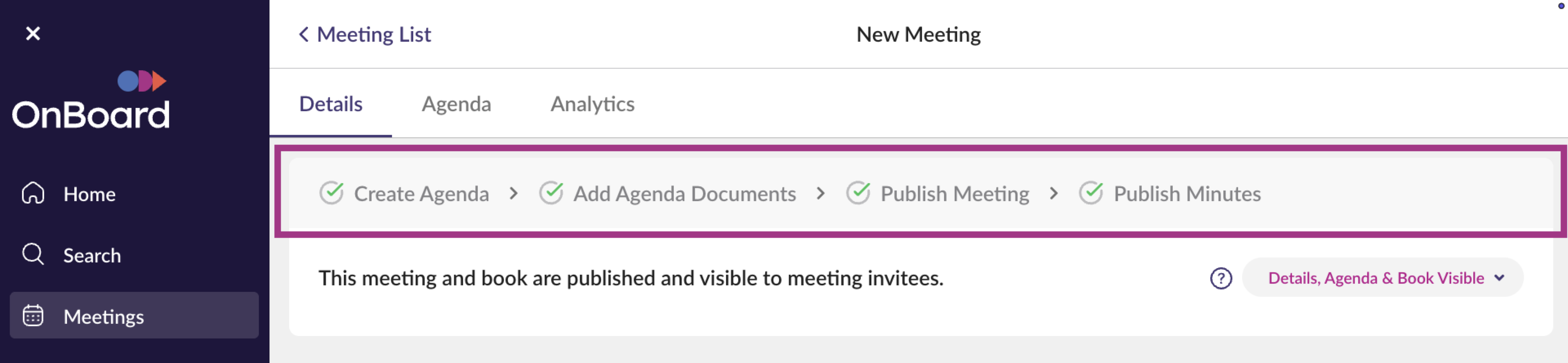
Disable Downloads
Keeping all your meeting content in OnBoard and requiring users to sign in to access it helps drive early adoption and begins building best practice into your routine. Paper copies of the meeting book should not be provided, but instead offer to help board members download and sign in to the OnBoard mobile app. The app is designed to be simple for board members and directors, so they don’t waste time clicking around or struggling to find what they need.
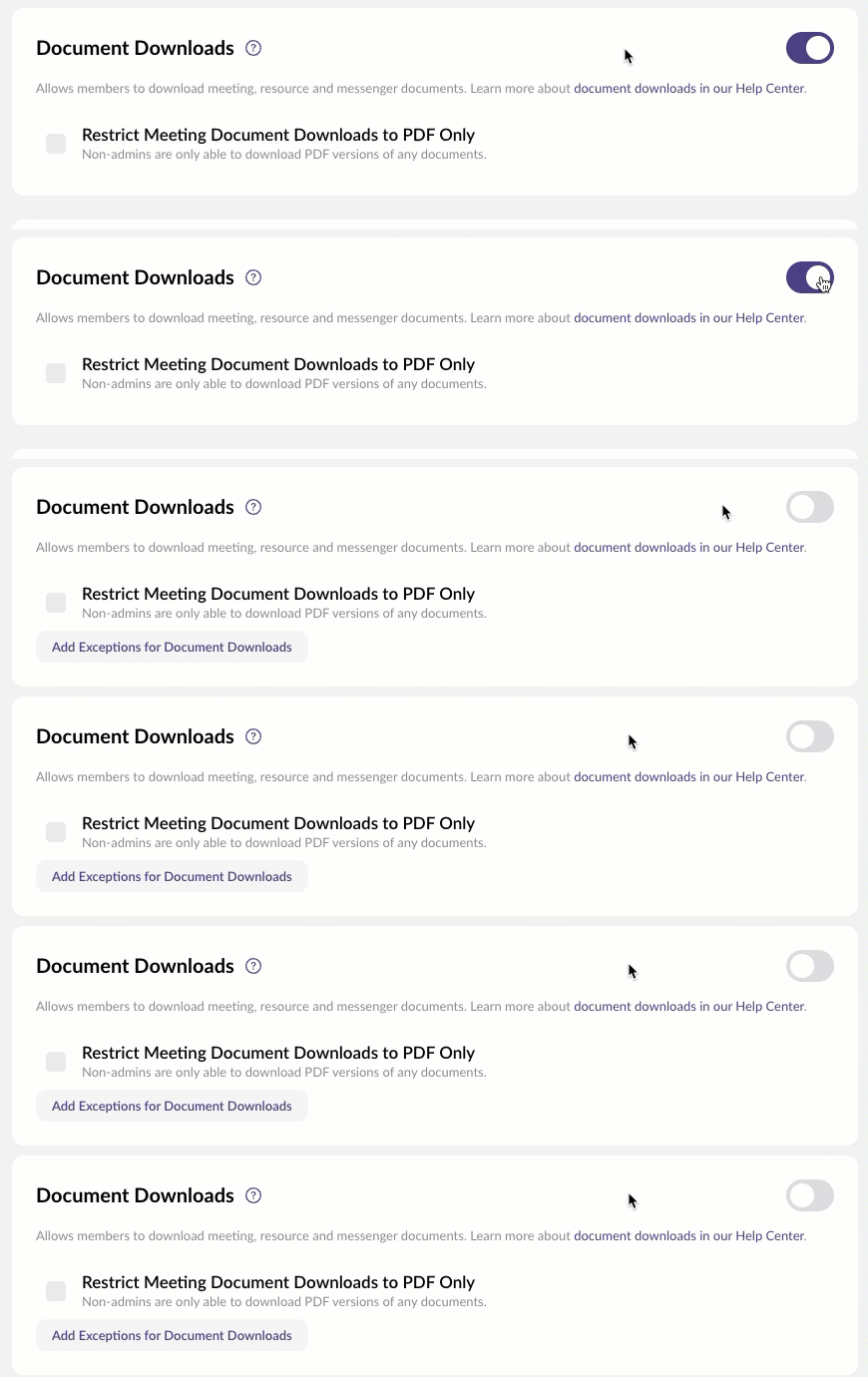
Put all Meeting materials into the Meeting Agenda – Not in Resources
Make the Meeting List your ”one-stop-shop” for all the organization’s meeting materials. When the meeting starts, or during early prep, board members and directors don’t need to search for content. Especially in the app, board members will find it easy to open the meeting book and scroll through documents, or use the table of contents to jump between sections of the book.
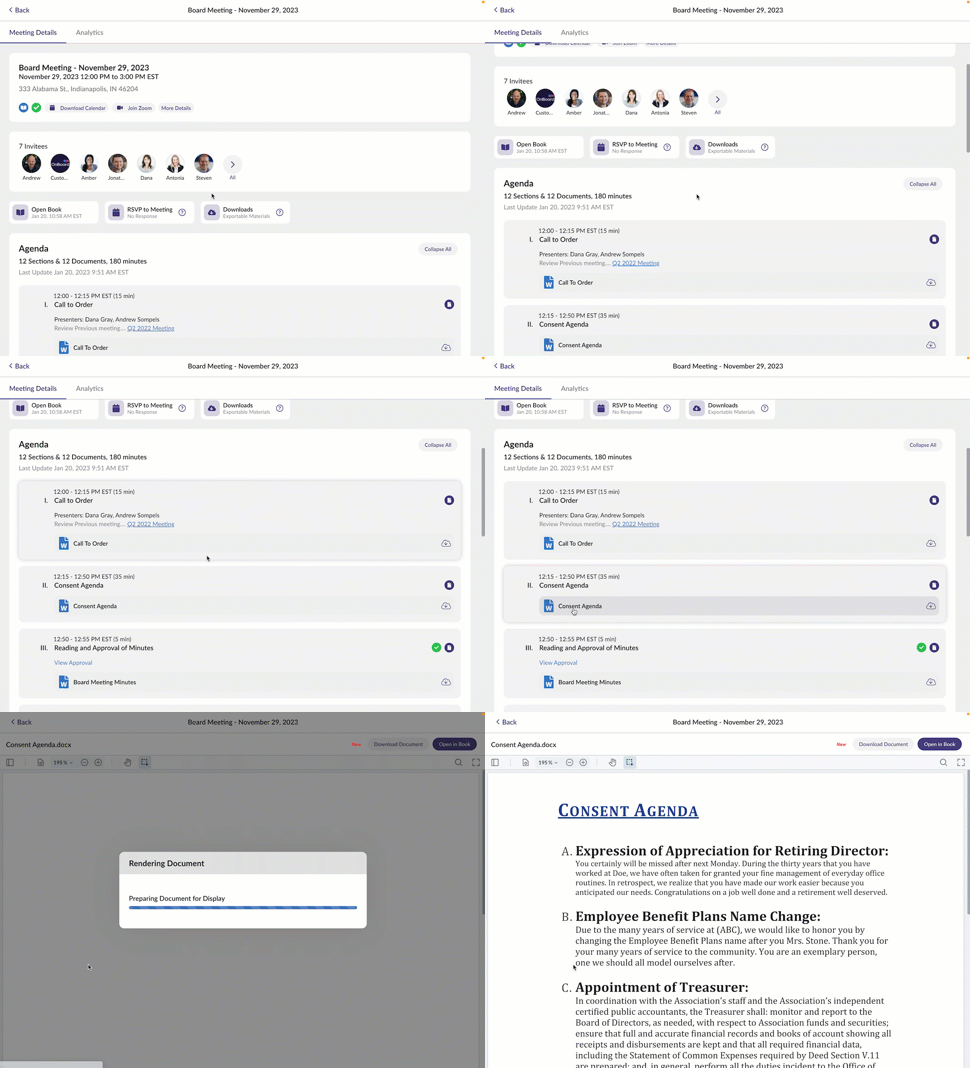
Resources is best used for any non-meeting materials, such as policies and bylaws, historical minutes storage, and documents that should be accessed outside of meetings. Bonus tip: Create folders for each board member or director and make them an admin of that folder. They can store their own documents and files in that folder for easy access. This helps solidify OnBoard as the go-to tool for anything board related.
Assign Permissions using Groups
Creating groups for the board, any committees, subcommittees, or other teams allows you to add and remove permissions with a couple clicks. As board membership changes and roles transition, this makes it easy to keep everyone in the loop for content that matters to them. Similarly, it helps keep private and confidential materials private and confidential. Pro tip: Create one group of all your OnBoard Administrators so you can easily add multiple admins with admin-level access to new meetings and resource folders.
Apply a Table of Contents and Page Numbers
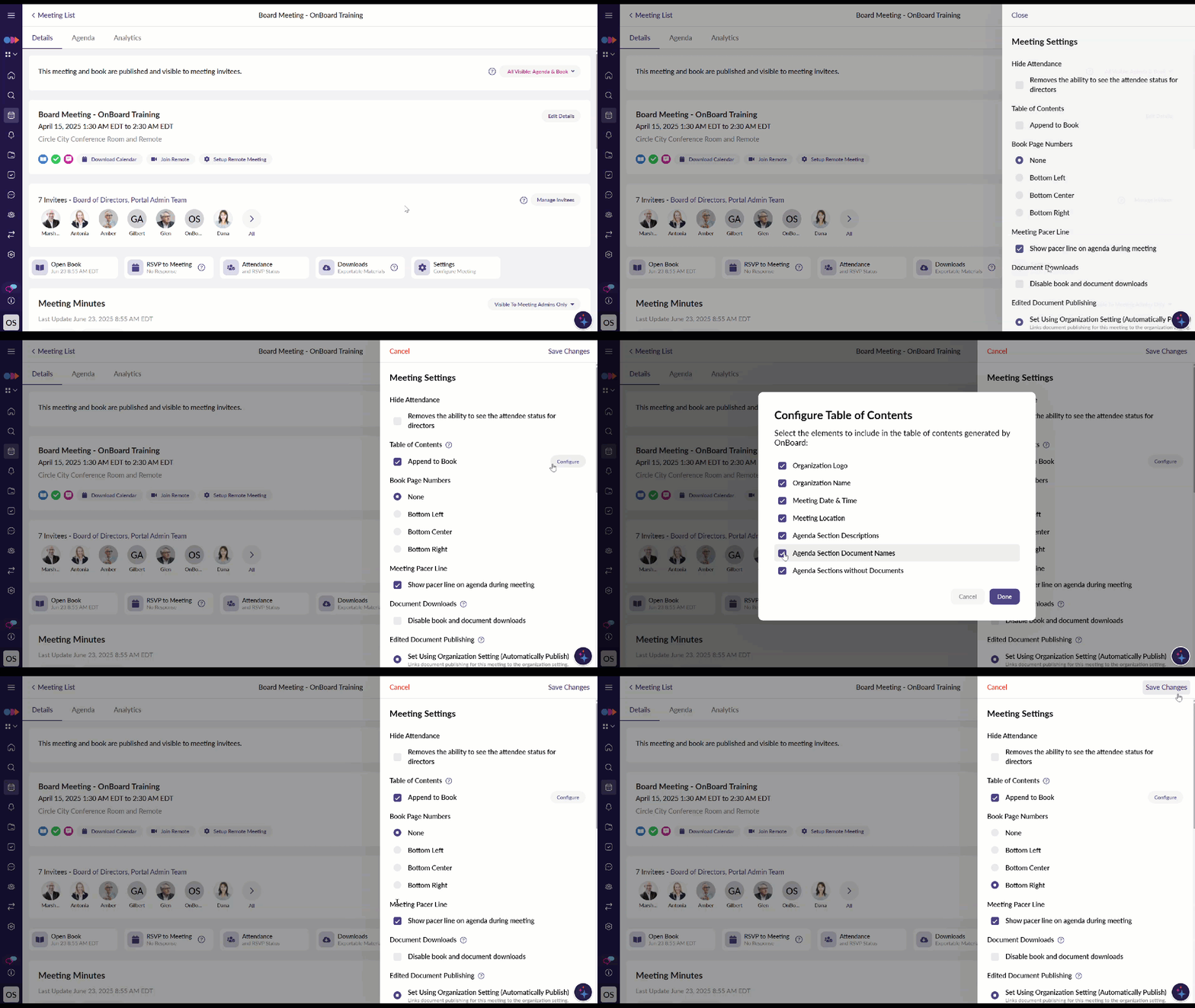
Create a polished meeting packet that dynamically generates a cover page and includes page numbers for the entire book. These features are found within the Meeting Settings and help users quickly navigate to a section or page of the materials.
Set Your Meeting to Published
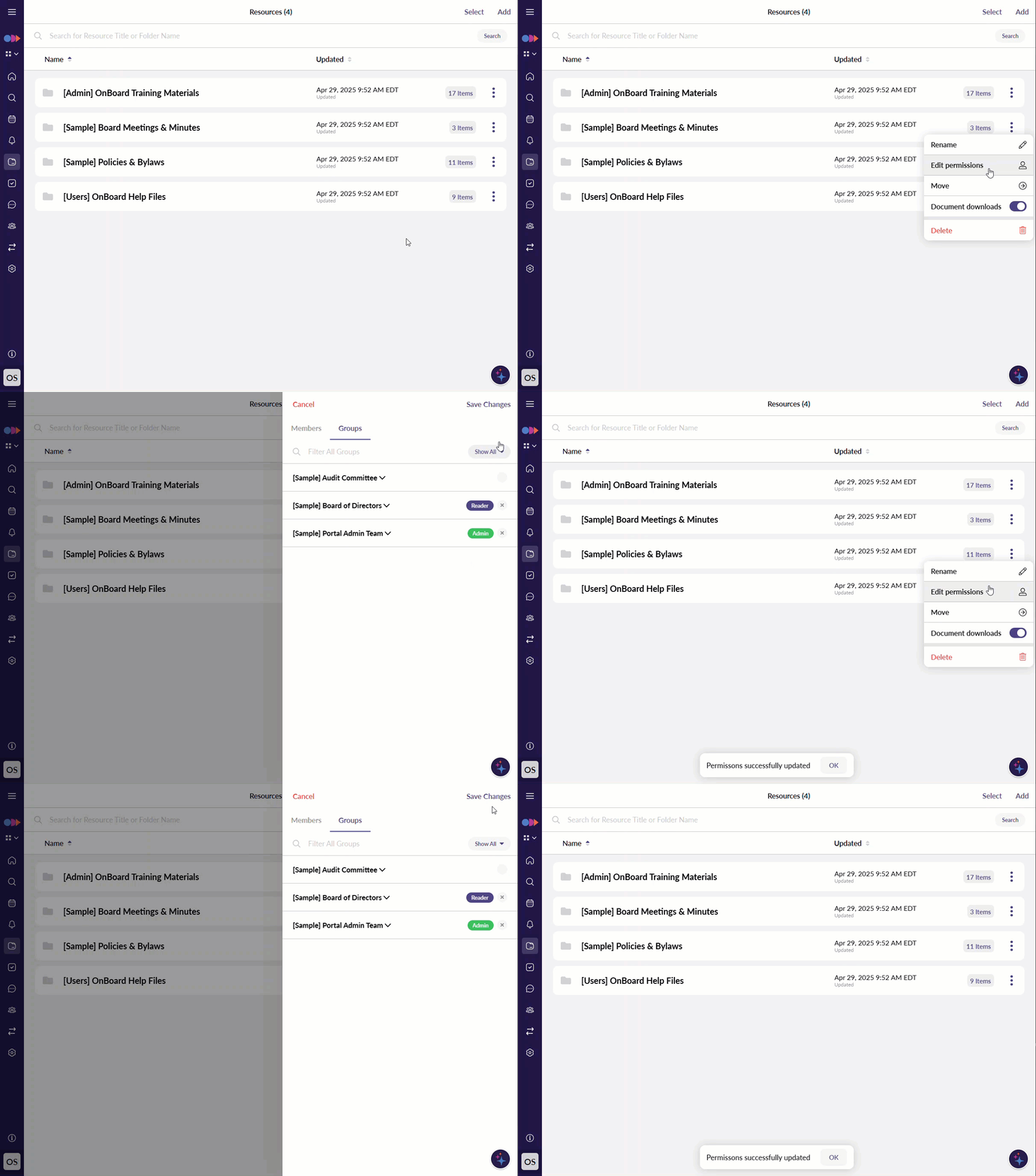
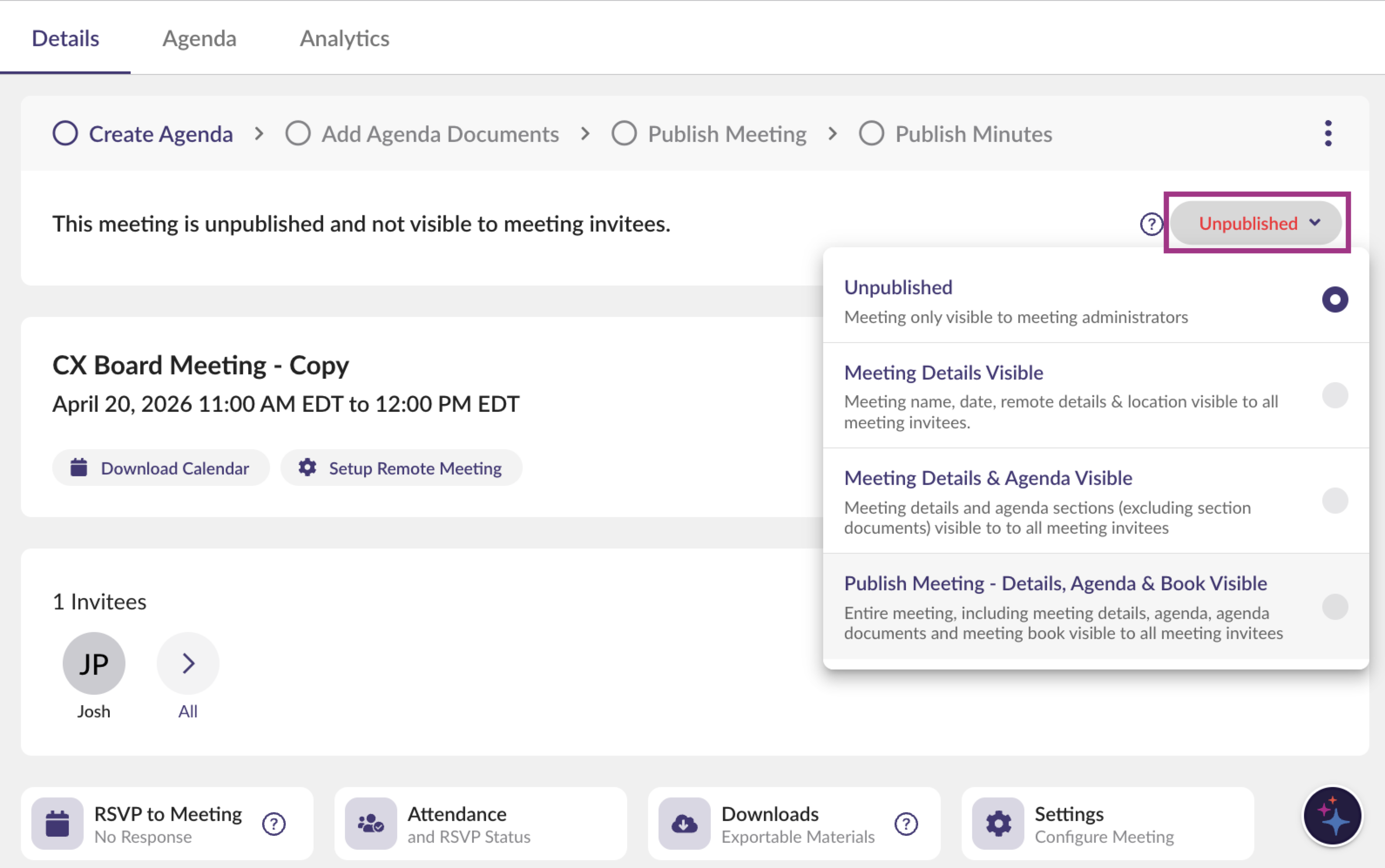
Before your meeting starts, make sure you have changed the meeting status to Publish Meeting - Detail, Agenda & Book Visible. This is the only status that allows invitees to view the board book you’ve spent your time preparing.
Build Your Next Meeting Early (And Easily)
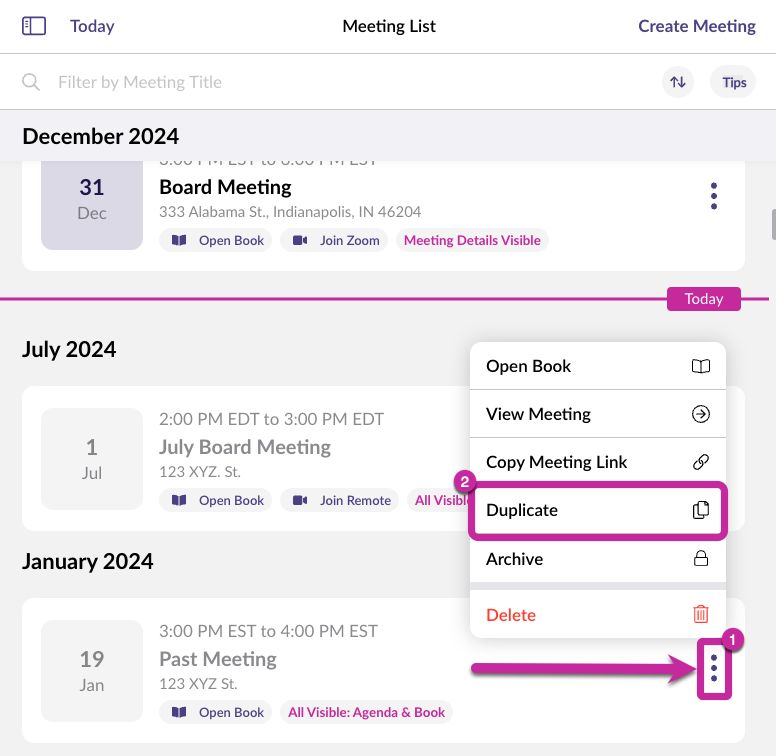
Using the Duplicate function you can create your next meeting in just a couple clicks. Once you know the date and time, even if it is tentative, publish your meeting to Meeting Details only to put the meeting on everyone’s calendar. Take advantage of the different visibility states (Meeting Details only, Details & Agenda, All Visible) to keep board members engaged and excited as planning progresses.
You can also incorporate a brief demo of OnBoard into the beginning of the meeting to introduce OnBoard to your board, or share some of the end user training materials that have been sent to you in advance of your rollout.
And remember, the best way to encourage board members to use OnBoard is to make it the only way to access the materials they need.
Comments
0 comments
Please sign in to leave a comment.