
Prior to running your first meeting with OnBoard's AI Minutes, you'll want to ensure that your Zoom and Teams' settings are configured to allow the OnBoard Recording Assistant to record and transcribe the meeting.
Review the checklists below for both Zoom and Teams.
Update Existing Remote Meeting Links
If a Zoom or Teams meeting was added to a meeting's details before AI Minutes was enabled for your account, the meeting will not be automatically set to record.
To schedule the OnBoard Recording Assistant for upcoming meetings already configured with a Zoom or Teams account, follow these steps after AI Minutes is activated for your organization:
- Copy all existing remote meeting information with the copy buttons, and paste it to a text editor.
- Select "Remove Zoom/Teams Video Meeting" or manually delete the remote meeting fields, and select "Close" or "Save Changes."
- Select "Setup Remote Meeting" and copy and paste the information within the fields of the "Configure Manually" section and save changes.
Once updated, the OnBoard Recording Assistant will be scheduled to record the meeting.
Zoom Settings Checklist
1. Ensure Record to Computer Files is Enabled
If Record to Computer Files is disabled in your Zoom Settings, the OnBoard Recording Assistant will fail to record.
- Go to your Zoom Settings.
- Navigate to the Recording settings.
- Ensure Record to computer files is toggled on.
NOTE: If updating these settings while currently in a Zoom meeting, you will need to restart the Zoom meeting for the changes to take effect.
2. Enable Participant Recording
For the OnBoard Recording Assistant to record the Zoom meeting, participants will need to have recording permissions enabled.
- Go to your Zoom Settings.
- Navigate to the Recording settings.
- Under Who can request host permission to record, ensure that both Internal meeting participants and External meeting participants are checked.
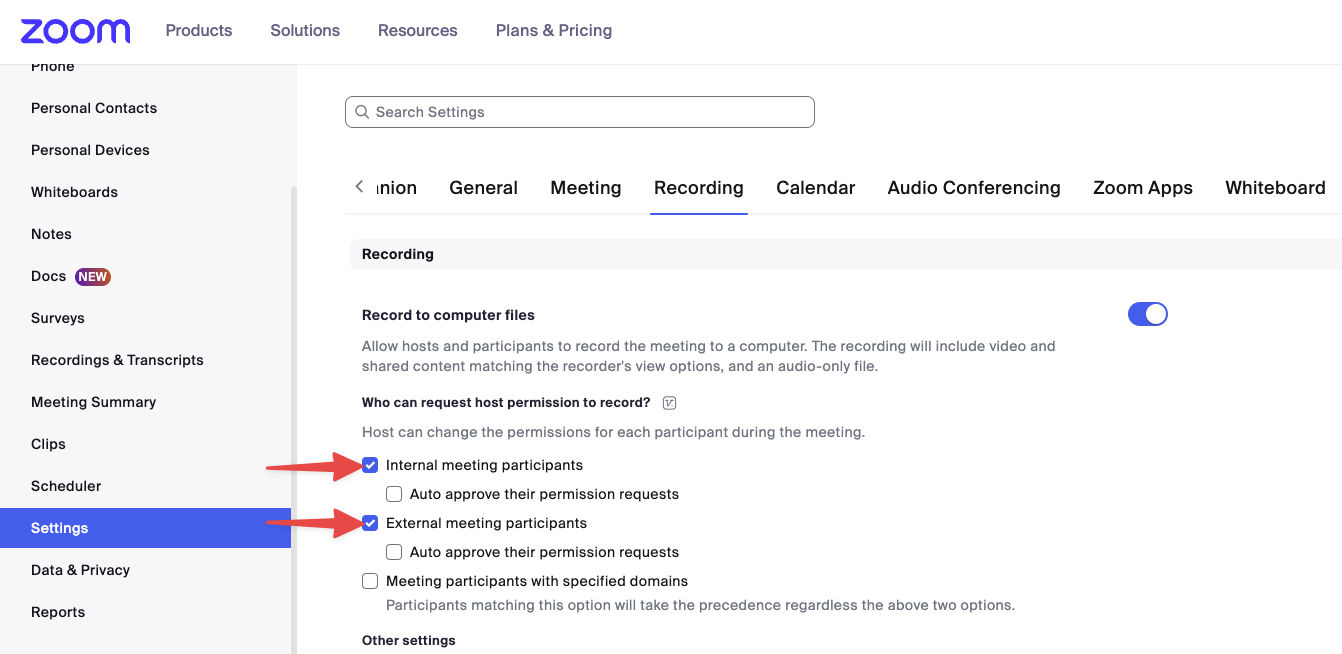
NOTE: If updating these settings while currently in a Zoom meeting, you will need to restart the Zoom meeting for the changes to take effect.
3. Ensure Automated Captions are Enabled
Enable Automated Captions in Zoom Settings
Captions will need to be enabled so that the OnBoard Recording Assistant can create the transcription.
- Go to your Zoom Settings.
- Navigate to the Meeting settings.
- Within In Meeting (Advanced) settings, ensure that Automated captions are toggled on.
Ensure that Allow only the following users to enable captions for the meeting or webinar is unchecked.
NOTE: If updating these settings while currently in a Zoom meeting, you will need to restart the Zoom meeting for the changes to take effect.
Enable Captions During a Zoom Meeting
To enable meeting captions during a meeting, navigate to Host Caption Control Settings while in a Zoom meeting.
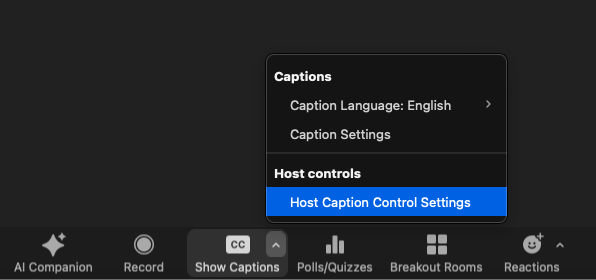
Then, enable the setting called Allow Closed Captioning for this meeting.
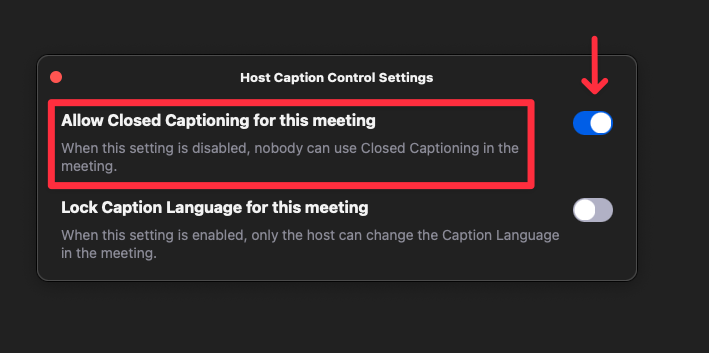
4. Enabling OnBoard Recording Assistant During a Zoom Meeting
Host Granting Permission to Record
During a Zoom meeting, the OnBoard Recording Assistant will need to request permission to record. The Zoom meeting host will need to be present to grant the OnBoard Recording Assistant permission to record.
NOTE: If you're re-using a Personal Meeting ID (PMI) for multiple meetings and check 'Apply these permissions to all future requests in this meeting' while denying the OnBoard Recording Assistant permission to record, it will be blocked from joining future meetings using that PMI.
If this occurs, you will need to change the Personal Meeting ID, re-add it to future OnBoard Meetings, and approve the request for the OnBoard Recording Assistant to join.
Ensure Local Recording is Enabled
If local recording is disabled within the settings of the meeting, the OnBoard Recording Assistant will be unable to record. To ensure it's enabled:
- In a Zoom meeting, navigate to Host Tools in the menu.
- Ensure Request to record to computer is checked.
Teams Settings Checklist
1. Ensure Live Captions Are Enabled For Meetings
Captions are required to generate a transcript. Teams Admins can ensure that Captions and Transcriptions are enabled by:
- Navigate to Settings.
- Select Captions and transcripts
- Ensure Always show live captions in meetings is toggled on.
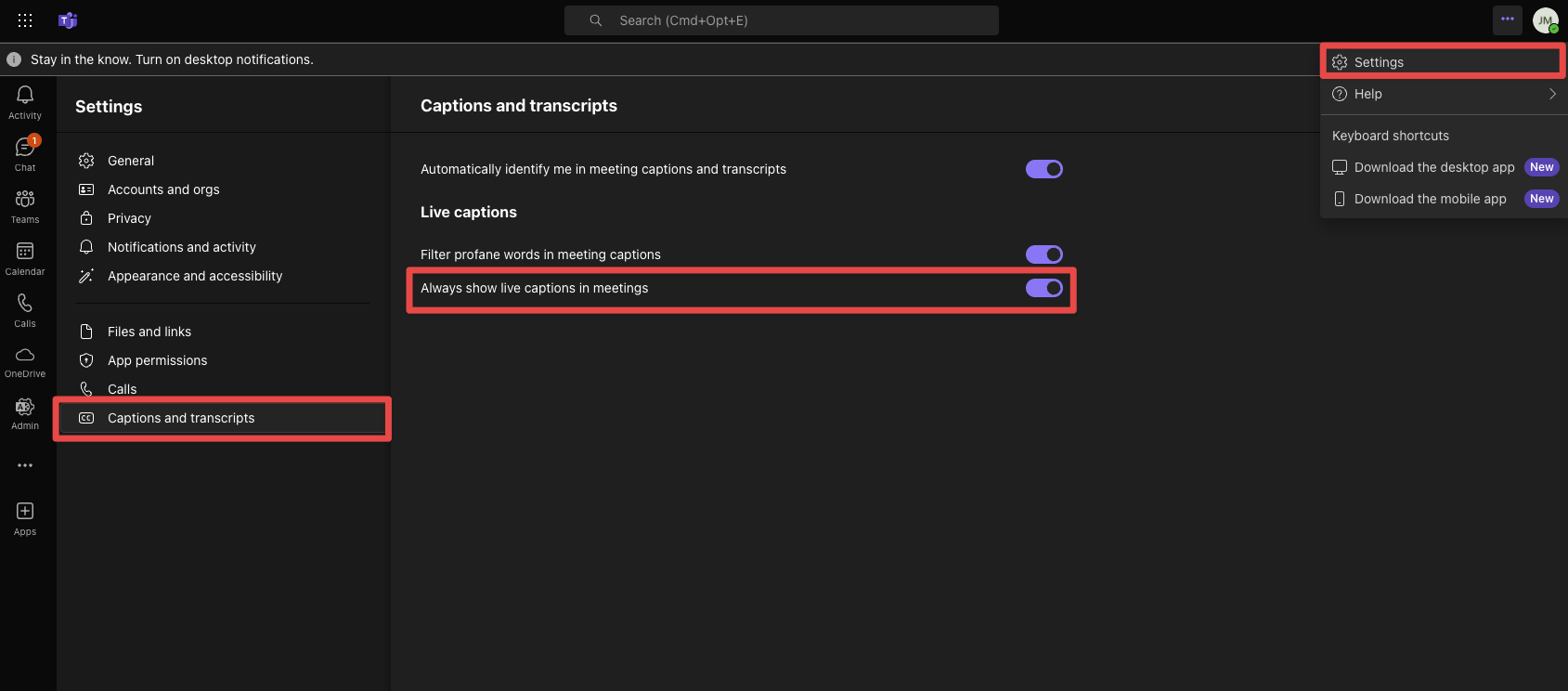
2. Ensure Attendees Are Identified in Meeting Captions and Transcripts
Meeting attendees will need to allow for Teams to identify them in meeting captions and transcripts, or their name will not appear in the AI Minutes transcript.
If you notice that an attendee's names are not appearing in a transcript, instruct them to:
- Navigate to Settings in Teams.
- Select Accessibility.
- Ensure that Automatically identify me in meetings captions and live transcripts is toggled on.
Note: This setting is on by default. We recommend that meeting admins inform invitees to enable the setting in advance if they have previously turned it off.
3. Allow Anonymous Participant Access - Teams Admin Center
The OnBoard Recording Assistant requires anonymous user access to be enabled in Microsoft Teams. If anonymous users are not allowed to join, the OnBoard Recording Assistant will not be able to join or record your meeting.
By default, Microsoft Teams allows anonymous participants to join meetings. However, if this setting has been disabled globally, a Teams administrator must update it in the Microsoft Teams Admin Center.
If you do not have admin rights, please contact your IT team or whoever manages Teams settings for your organization.
How to Manage Anonymous Participant Access in Teams Admin Center
- Go to the Teams Admin Center.
- Expand Meetings > Meeting policies.
- Select an existing policy or create a new one.
- Under Meeting Join and Lobby, toggle the Anonymous users can join a meeting unverified setting Off.
- Select Save.
For more information, review the Manage anonymous participant access to Teams meetings article on the Microsoft Learn site.
4. Allow Anonymous or Signed-In Participant Access – Individual Meeting
The OnBoard Recording Assistant can join Microsoft Teams meetings either anonymously or as a signed-in user, depending on your organization’s Microsoft Teams configuration.
Meetings That Allow Anonymous Participants
If your organization allows anonymous participants, the OnBoard Recording Assistant will join the meeting anonymously.
How to Manage Anonymous Participant Access An Individual Meeting
- In the Outlook calendar event, select Meeting Options
- Under Meeting Access toggle Require unverified participants to verify their info before joining off.
Meetings That Require Signed-In Users
If your organization requires participants to sign in before joining Teams meetings, the OnBoard Recording Assistant will sign in using its Microsoft account before joining the meeting.
If your Microsoft Teams organization is configured to block anonymous users entirely, you must allowlist the OnBoard Recording Assistant domain in your organization’s External Access settings.
Allowlist the OnBoard Recording Assistant Domain
Microsoft Teams trusted relationships are configured through your organization’s External Access settings and are based on the domain of the account joining the meeting.
To allow the OnBoard Recording Assistant to join meetings as a trusted external participant, add the following domain to your Microsoft Teams External Access allowlist:
- Domain: onboard.software
The OnBoard Recording Assistant signs in using:
- Email: assistant@onboard.software
For more information about configuring trusted external access in Microsoft Teams, refer to Microsoft Teams External Access settings documentation.
5. Real-time Text (RTT) Is Not Supported
Enabling the Real-time Text (RTT) feature in Microsoft Teams causes captions to stop coming through, preventing transcription.
HIPAA - Security Enabled Zoom Accounts
Certain HIPAA-compliant Zoom accounts with older Business Associate Agreements (BAAs) may not have access to automated captions. To enable automated captions, an updated HIPAA-compliant agreement may be required.
To update your agreement, please contact your Zoom Account Executive.
Important: Signing a new BAA does not automatically update your account settings. After completing the agreement, ensure automated captions are enabled in your Zoom account settings.
Non-Compatible Zoom Configurations and Features
Non-Compatible Zoom Configurations
The following Zoom configurations are not compatible with AI Minutes:
- Zoom Webinars
- OnZoom Events
- Zoom Gov
- Zoom Rooms
- VDI Client
Non-Compatible Zoom Features
The following Zoom features are not compatible with AI Minutes:
- Language Interpretation
- Cursor Capture
Comments
0 comments
Please sign in to leave a comment.