
Before using AI Minutes for your first meeting, verify that your Zoom or Microsoft Teams settings allow the OnBoard Recording Assistant to join, record, and transcribe the meeting.
Use the checklists below to confirm your setup.
Update Existing Remote Meeting Links
If a Zoom or Teams meeting link was added to a meeting before AI Minutes was enabled for your organization, the OnBoard Recording Assistant will not be automatically scheduled to record.
To update an existing meeting:
- Copy the existing remote meeting information and save it in a text editor.
- Select Remove Zoom/Teams Video Meeting (or manually remove the remote meeting details) and save your changes.
- Select Setup Remote Meeting.
- Re-enter the Zoom or Teams information in the Configure Manually section.
- Save your changes.
Once updated, the OnBoard Recording Assistant will be scheduled to record the meeting.
Zoom Checklist
1. Enable Record to Computer Files
The OnBoard Recording Assistant cannot record meetings if Record to Computer Files is disabled in your Zoom Settings.
- Open Zoom Settings.
- Navigate to Recording
- Ensure Record to computer files is enabled.
Note: If you change this setting during an active meeting, restart the meeting for the change to take effect. |
2. Allow Participant to Record
- Open Zoom Settings.
- Navigate to Recording.
-
Under Who can request host permission to record, enable:
- Internal meeting participants
- External meeting participants
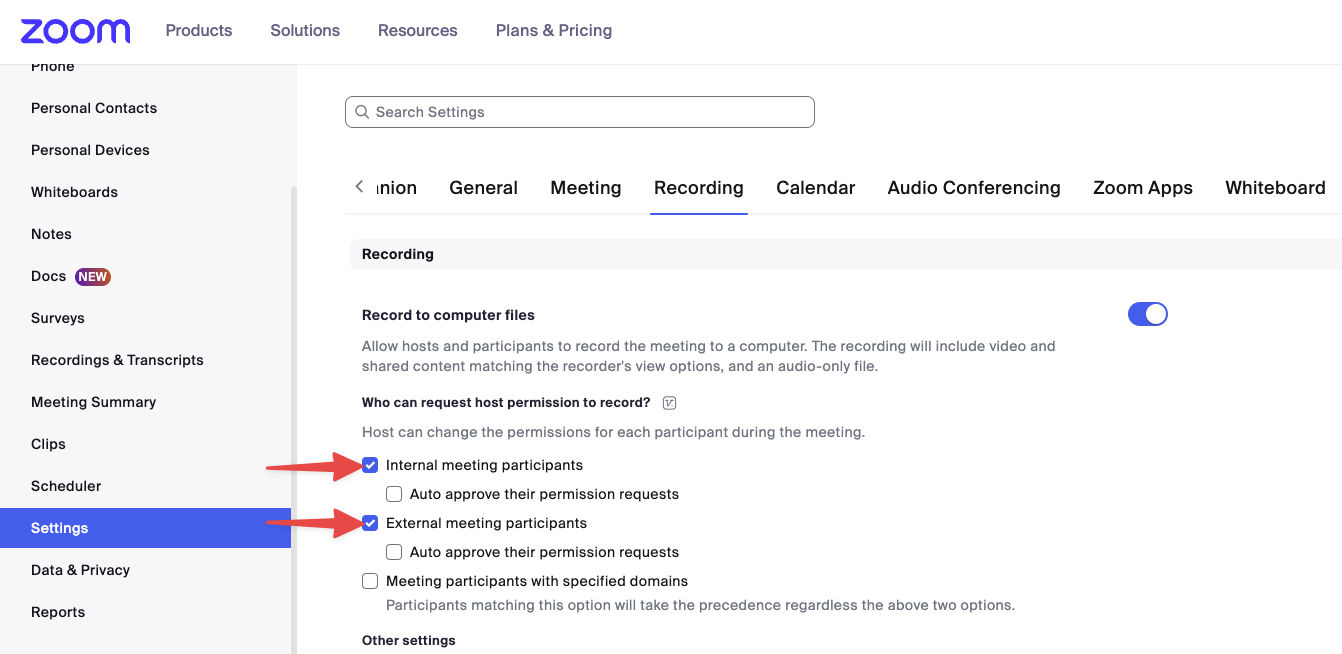
| Note: Changes made during an active meeting require the meeting to be restarted. |
3. Enable Automated Captions
Enable Automated Captions in Zoom Settings
- Open Zoom Settings.
- Navigate to the Meeting settings.
- Under In Meeting (Advanced) settings, enable: Automated captions.
- Ensure Allow only the following users to enable captions for the meeting or webinar is not selected.
| Note: If you change these settings during an active meeting, restart the meeting for the change to take effect. |
Enable Captions During the Meeting
- While in the meeting, select the caret next to Show Captions to open Captions Options.
- Open Host Caption Control Settings.
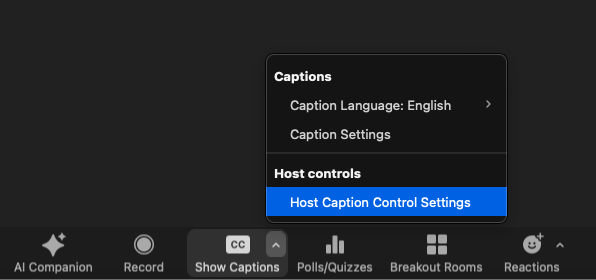
- Enable Allow Closed Captioning for this meeting.
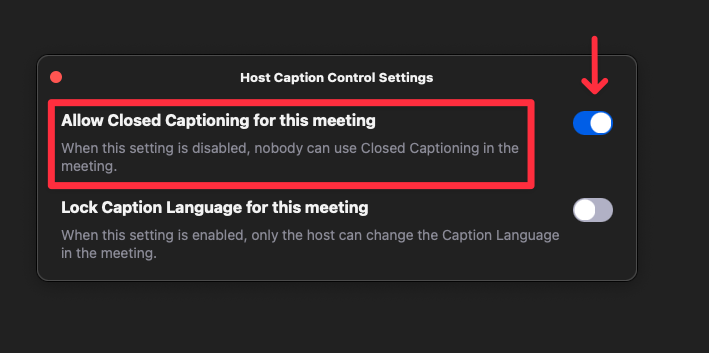
4. Grant Recording Permissions During the Meeting
When the OnBoard Recording Assistant joins a Zoom meeting, it will request permission to record.
The meeting host must be present to approve the request.
Important
If you use the same Personal Meeting ID (PMI) for multiple meetings and select Apply these permissions to all future requests in this meeting while denying permission, the OnBoard Recording Assistant may be blocked from future meetings using that PMI.
If this occurs:
- Change your PMI using Zoom's documentation.
- Update future OnBoard meetings with the new meeting information.
- Approve the Recording Assistant's request when it joins.
5. Verify Local Recording Is Allowed for the Meeting
If local recording is disabled within the settings of the meeting, the OnBoard Recording Assistant will be unable to record. To ensure it's enabled:
- In a Zoom meeting, open Host Tools in the menu.
- Verify Request to record to computer is enabled.
6. Allow Unauthenticated Users to Join from Web Client
The OnBoard Recording Assistant must be able to join the meeting without authenticating through the Zoom web client.
If this setting is enabled, the OnBoard Recording Assistant will be unable to join or record the meeting, and Recording Inactive will appear in OnBoard.
To ensure the OnBoard Recording Assistant can join:
- Open Zoom Settings.
- Navigate to Meeting.
- Locate Only authenticated users can join meetings from Web client.
-
Ensure Only authenticated users can join meetings from Web client is disabled.
If this setting is enabled, OnBoard will display the following message:
Recording Inactive
OnBoard Recording Assistant was unable to join the meeting. The meeting is configured to only allow signed in users to join.
Teams Settings Checklist
1. Enable Live Captions
Captions are required to generate a transcript. Teams Admins can ensure that Captions and Transcriptions are enabled by:
- Open Settings in Microsoft Teams.
- Select Captions and transcripts.
- Ensure Always show live captions in meetings is enabled.
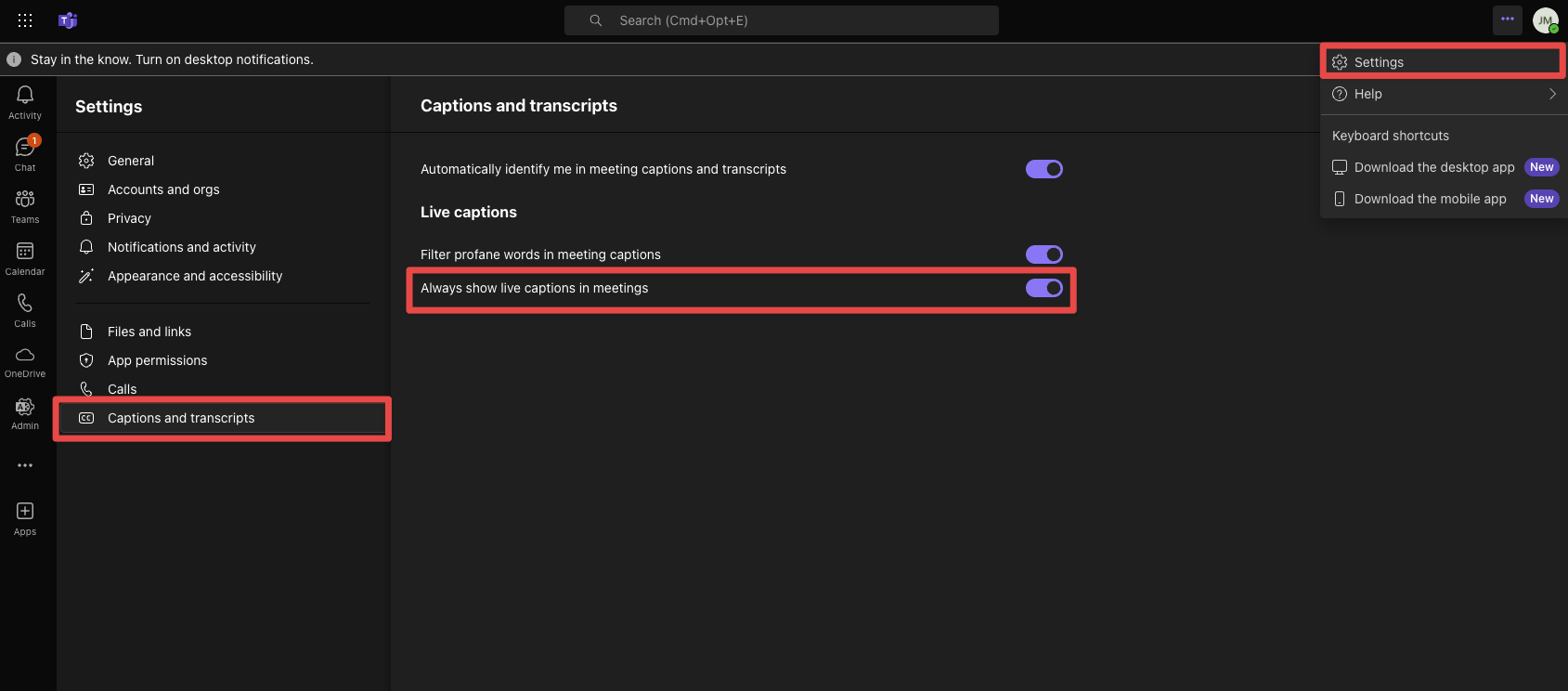
2. Allow Participant Identification
To ensure participants' name appear correctly in the transcript, instruct them to:
- Open Settings in Teams.
- Select Accessibility.
- Enable Automatically identify me in meeting captions and live transcripts.
Note: This setting is enabled by default. If attendees previously disabled it, their names may not appear in AI Minutes transcripts. |
3. Allow Anonymous Participants (Teams Admin Setting)
The OnBoard Recording Assistant requires anonymous user access to be enabled in Microsoft Teams.
If anonymous users are not allowed to join, the OnBoard Recording Assistant will not be able to join or record your meeting.
By default, Microsoft Teams allows anonymous participants to join meetings. However, if this setting has been disabled globally, a Teams administrator must update it in the Microsoft Teams Admin Center.
If you do not have admin rights, please contact your IT team or whoever manages Teams settings for your organization.
Teams Admin Center
- Open the Microsoft Teams Admin Center.
- Navigate to Meetings > Meeting Policies.
- Select the appropriate meeting policy.
- Under Meeting Join and Lobby, enable Anonymous users can join a meeting unverified.
- Save the policy.
| For more information, review the Manage anonymous participant access to Teams meetings article on the Microsoft Learn site. |
4. Configure Access for Individual Meetings
The OnBoard Recording Assistant can join Microsoft Teams meetings either anonymously or as a signed-in user, depending on your organization’s Microsoft Teams configuration.
Meetings Allowing Anonymous Participants
To verify meeting settings:
- Open the Outlook calendar event.
- Select Meeting Options.
- Under Meeting Access, disable Require unverified participants to verify their information before joining.
Allow Listing for Meetings Requiring Sign-in
If your organization blocks anonymous users, the OnBoard Recording Assistant will join using a Microsoft account.
In this scenario, your Teams administrator must allow the OnBoard Recording Assistant domain through External Access settings.
To allow the OnBoard Recording Assistant to join meetings as a trusted external participant, add the following domain to your Microsoft Teams External Access allowlist:
- Domain: onboard.software
The OnBoard Recording Assistant signs in with:
- Email: assistant@onboard.software
| For more information refer to Microsoft Teams External Access settings documentation. |
5. Real-time Text (RTT) Is Not Supported
The Microsoft Teams Real-time Text (RTT) feature is not supported by AI Minutes.
When RTT is enabled, captions are no longer available to the OnBoard Recording Assistant, preventing transcription.
| Learn more about Real-Time Text in Microsoft Teams. |
HIPAA-Compliant Zoom Accounts
Some HIPAA-compliant Zoom accounts with older Business Associate Agreements (BAAs) may not have access to automated captions.
If automated captions are unavailable:
- Contact your Zoom Account Executive to discuss updating your BAA.
- After the agreement is updated, verify that automated captions are enabled in Zoom settings.
| NOTE: Signing a new BAA does not automatically enable captions. After completing the agreement, ensure automated captions are enabled in your Zoom account settings. |
Unsupported Zoom Configurations and Features
Unsupported Zoom Configurations
AI Minutes does not support:
- Zoom Webinars
- OnZoom Events
- Zoom Gov
- Zoom Rooms
- VDI Client
Unsupported Zoom Features
AI Minutes is not compatible with:
- Language Interpretation
- Cursor Capture
Comments
0 comments
Please sign in to leave a comment.