Recording Votes: Approvals vs. Motions in Minutes

Votes can be recorded within OnBoard in two ways, depending on the formality or informality of the vote:
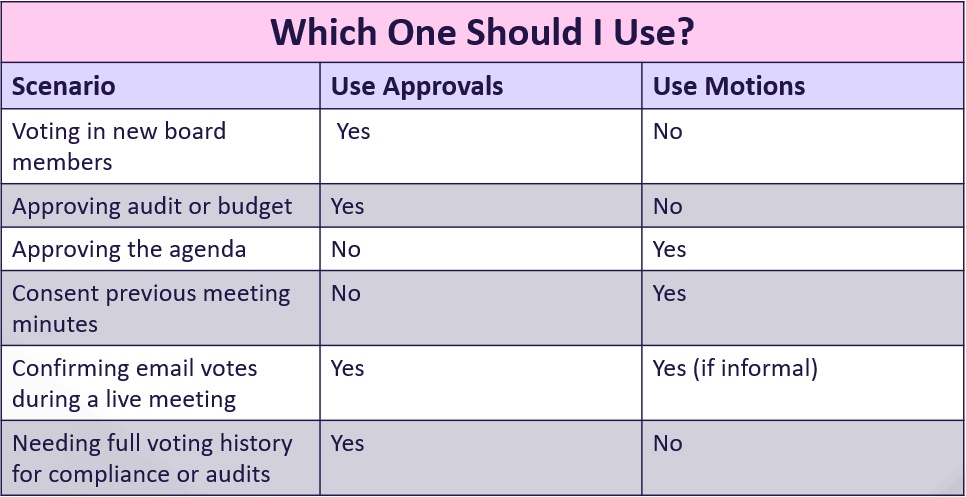
- Formal Voting – Use the Approvals tool.
- Informal Voting – Use Motions within the Minutes Builder.
Understanding the difference between the two will have you recording board decisions accurately and efficiently.
___________________________________________________________________________________
Option 1: Approvals (Formal Voting)
Use Approvals when you want to take formal votes that:
- Are binding and a component of official board governance.
- Require clear record keeping regarding who voted, how they voted (Yes / No / Abstain), and when.
- Are possibly audited or used to confirm compliance (e.g. elections, financial approvals, major decisions).
Common Use Cases:
- Election of a new board member.
- Approval of the annual audit.
- Approval of the organization's budget.
- Any decision that calls for a formal, documented vote by board members.
Key Features:
- Each vote is created as an Approval item in the Actions list.
- Members cast their votes in OnBoard in real-time or asynchronously.
- Admins can track participation, remind members to vote, and enforce deadlines.
- Results are formally documented and attributed to specific voters.
Learn how to manage Approvals in OnBoard
*Tips & Best Practices
- Formal votes can be set up in advance as Approvals. Notify members how and when to vote.
________________________________________________________________________________________________
Option 2: Motions in the Minutes Builder (Informal Voting)
Use the Motions tool within the Minutes Builder for less formal items or actions typically handled by:
- "motion to approve" at a meeting.
- No need for detailed records of who voted and how each voted.
- An assumption of consensus unless there is an objection.
Typical Use Cases:
- Adoption of the meeting agenda.
- Approval of previous meeting minutes.
- Consent calendar items.
- Ratification of previously approved actions (e.g. ratifying an email vote in person).
How It Works:
- Start Minutes option on meeting page.
- Select "Start from a copy of the agenda" to bring in your meeting format.
- Underneath each agenda item, click + and choose "Add Motion."
- Fill in the Motion Notes, e.g., who moved, seconded, and if it passed.
- Check boxes optionally to include mover/second information in final minutes.
Motion Template Example:
Motion to approve the meeting agenda.
Moved by: Alex Johnson
Seconded by: Casey Lee
Result: Approved. No objections.
Learn how to use Motions in the Minutes Builder
*Tips & Best Practices
- Informal motions can be recorded live during the meeting by the minute-taker.
- If you use "Start from agenda," remember it captures the agenda at that moment—edits you make afterward won't carry over.
- Remember to check the boxes next to "Moved" and "Seconded" in Motions if you want names to appear in completed minutes.
*Tip: If in-person or real-time verification of past votes (e.g., email votes) is required by your bylaws, you can handle that as a motion within the minutes for simplicity.
_______________________________________________________________________________________________________
Comments
0 comments
Please sign in to leave a comment.